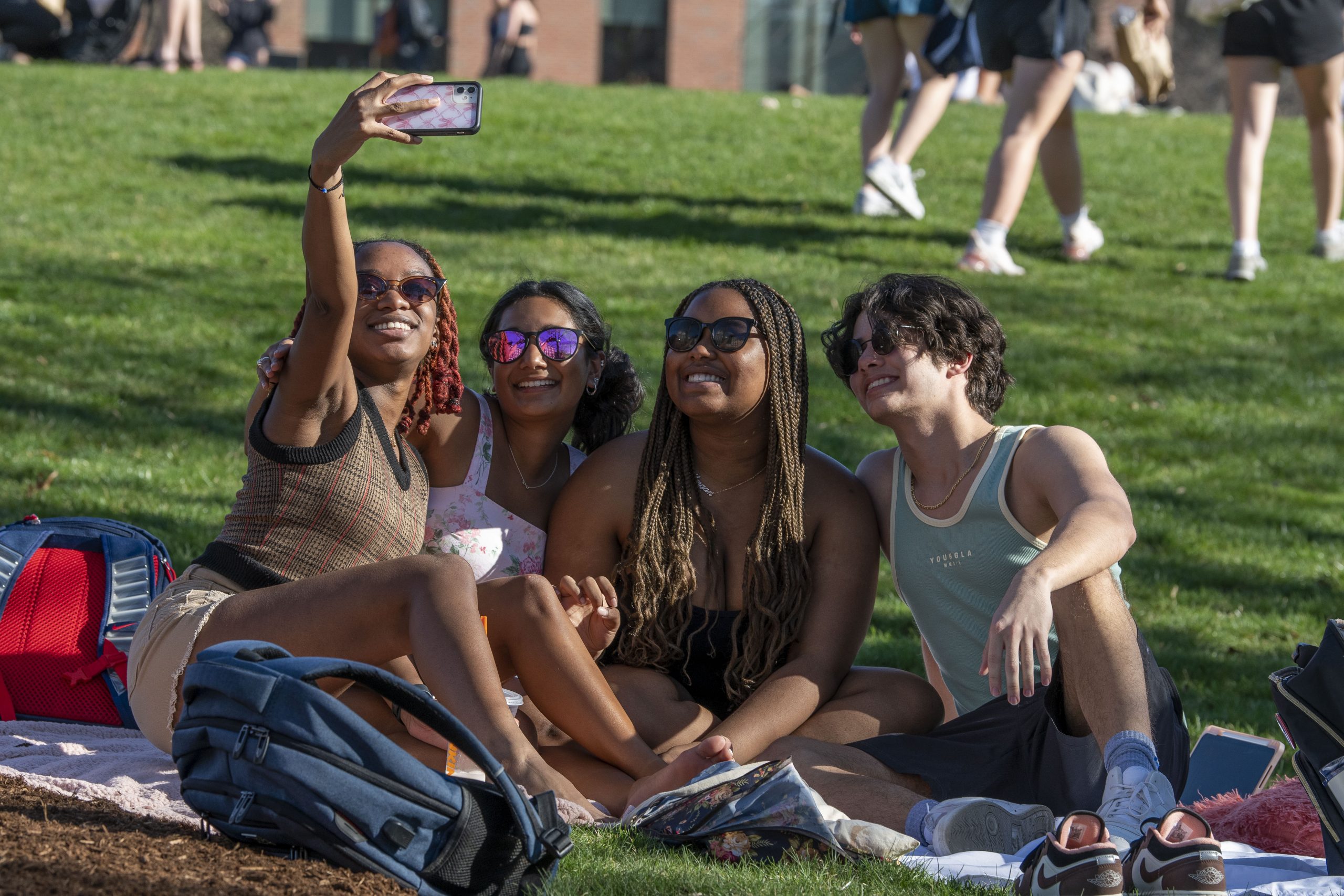
Full-Width Row +
Cover Block with Text Overlay
Create A Page with No Title and a Hero Image
Instructions
- Create a new page
- Insert a Row block – make sure this is the first block on the page
- Set the Row block with the following:
- Settings > Block width options > Full width stretch
- Inside the Row insert a Cover Block for the photo
- Cover Block settings:
- Settings > Content Width and Wide Width: 100%
- Settings > Resolution > Full Size
- Styles > Width > Grow
- Styles > Minimum Height > (I usually do 500 or 600px)
These are the main settings to get the full-width effect. You can also play with more Cover Block settings for styles and text overlay, etc.
You can apply a Row like this anywhere in the page layout to get a full-width effect, but if you place the Row with these settings at the top of the page, it will cause the page title to not appear on the web page when viewed in the browser. You’ll see the title when editing with Aurora.